
How to set up Hosting on Google Cloud Hosting Services for free.
If you want the Best WordPress Themes and deals Click here.

How to Setup Google Cloud Platform?
In this blog, I’m going to tell you how to set up Google Cloud Hosting with a free $300 credit for 3 Months with your Existing Google Account to set up the hosting on your Domain. For setup of hosting some Things are required.
- Google Account
- A Fresh Domain
- A PC or Laptop. At least a minimum 8MBPS Speed Connection for Google Cloud Hosting setup.
GO TO GOOGLE CLOUD SITE:- click here
Step Wise Procedures:
Landing Page: https://be.elementor.com/visit/?bta=205378&nci=5699Setup Google Free Credit & CREATE INSTANCE FOR WordPress DEPLOYMENT:
Setting up Google Cloud Hosting is a straightforward process that can be completed by following these steps:
- Access the Google Cloud website using the provided link.
- Log in to your Google account on the website.
- Navigate to the Console Panel located at the top of the page.
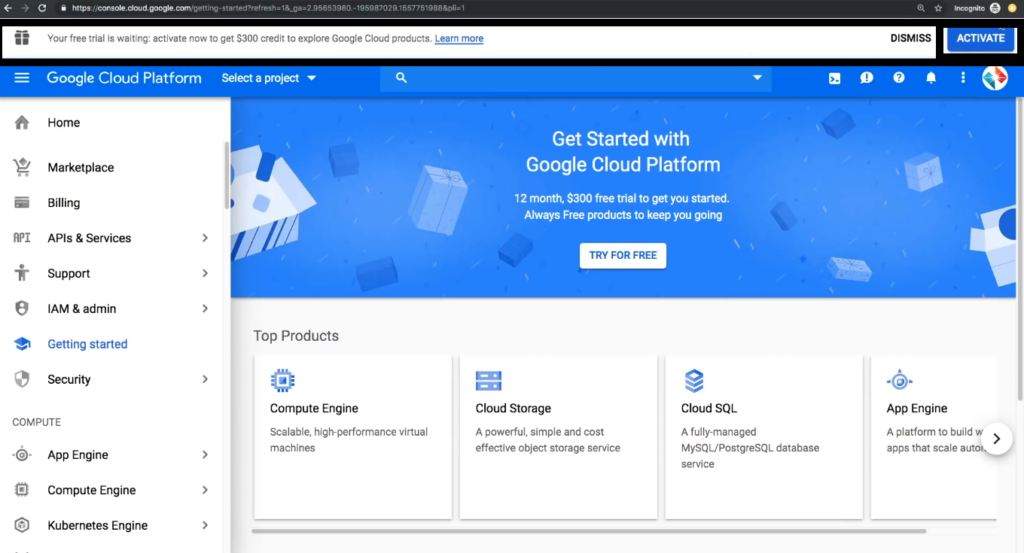
- Look for a message displayed on the upper side of the page that mentions your free trial offer, which includes $300 credit or 12 months of usage.
- Click on the “Activate” button as shown in the image below this message.
- By completing these steps, you will initiate the setup process for Google Cloud Hosting and gain access to your free trial offer benefits.
2. Select your country -> mark agree terms & conditions -> AGREE AND CONTINUE -> Click Next -> select account type as Individual -> Fill the Other Information and Card Information(You Can Cancel Google Cloud Hosting at any time within a year) After Completing the process you can see the message as below image
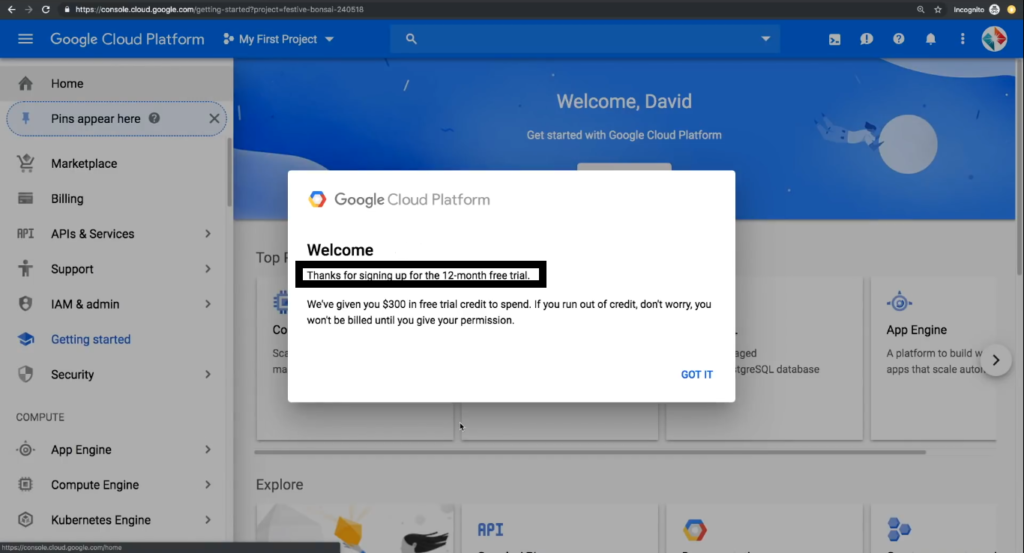
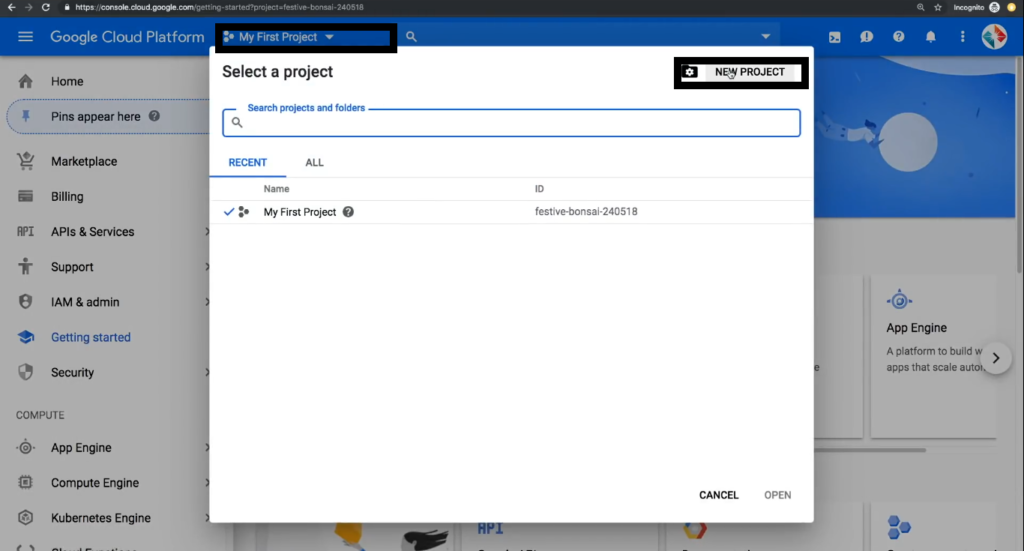
3. Click On Project List -> Select New Project -> Type any Project Name you Want
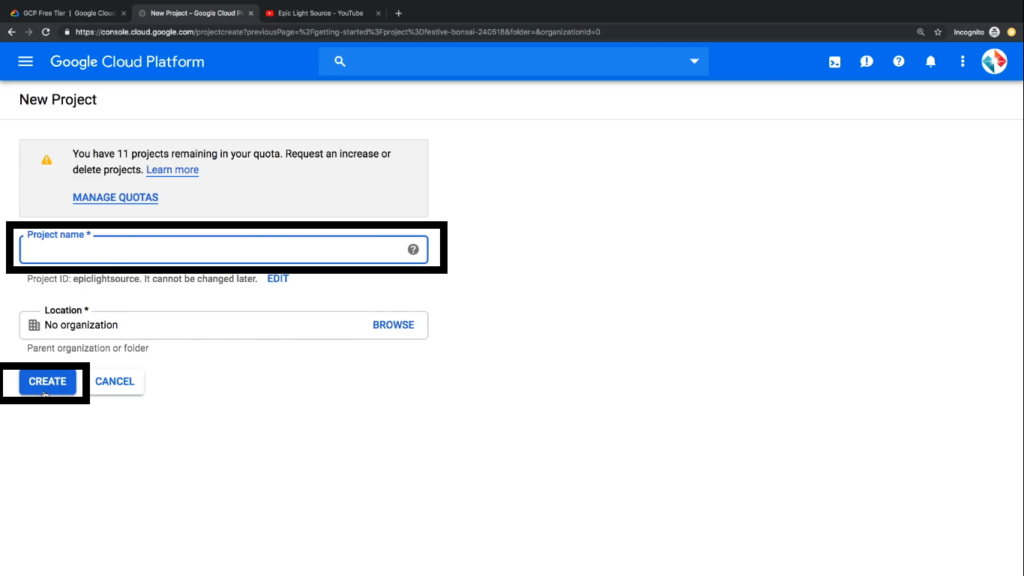
4. You can Type any Project Name as you Want -> Location selection is Not Required -> Click Create
Deploy WordPress
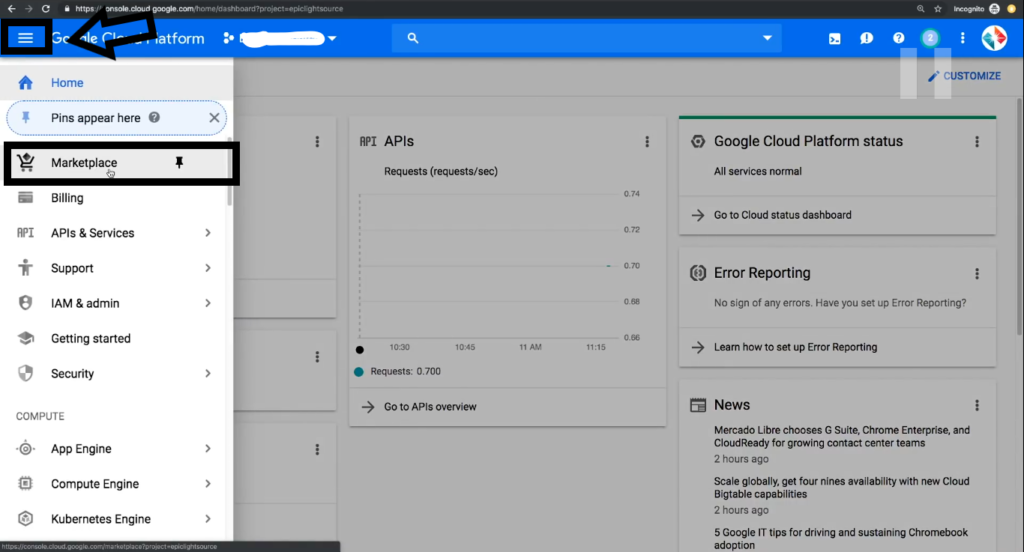
- Go to the Menu -> Select Marketplace – > In the List You can find and Select WordPress Certified By Bitnami. (Note: WordPress By Bitnami is the Same version as Regular WordPress So, There are more options than regular WordPress.and it looks the same as regular WordPress) Click On Launch on Compute Engine
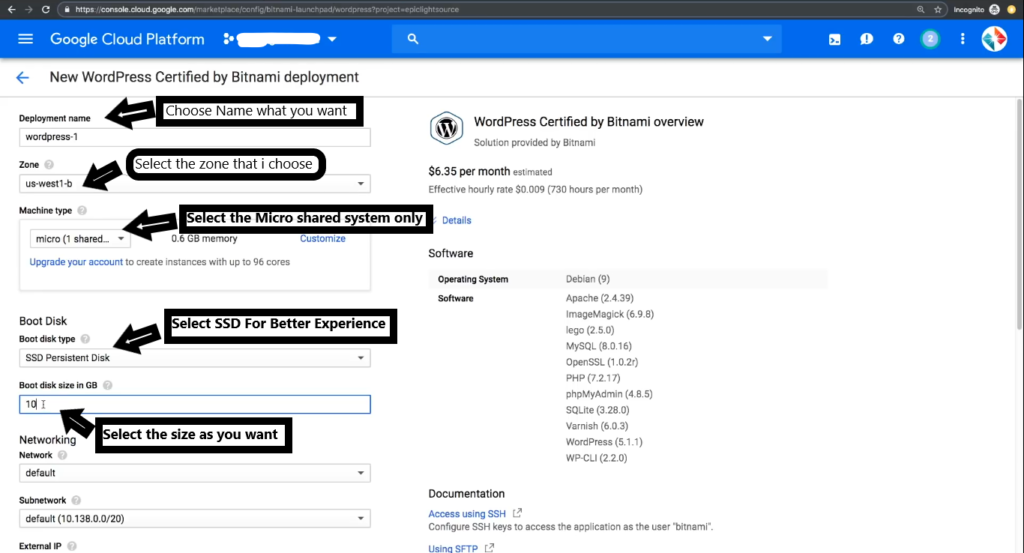
2. Type Deployment Name -> Select Zone (us-west1-b) as I mention in the below Image. Select Machine type (micro (1 shared)). Select Boot disk type to SSD Persistent Disk -> Select Boot Disk size as you want for your Site -> Other Settings as Default
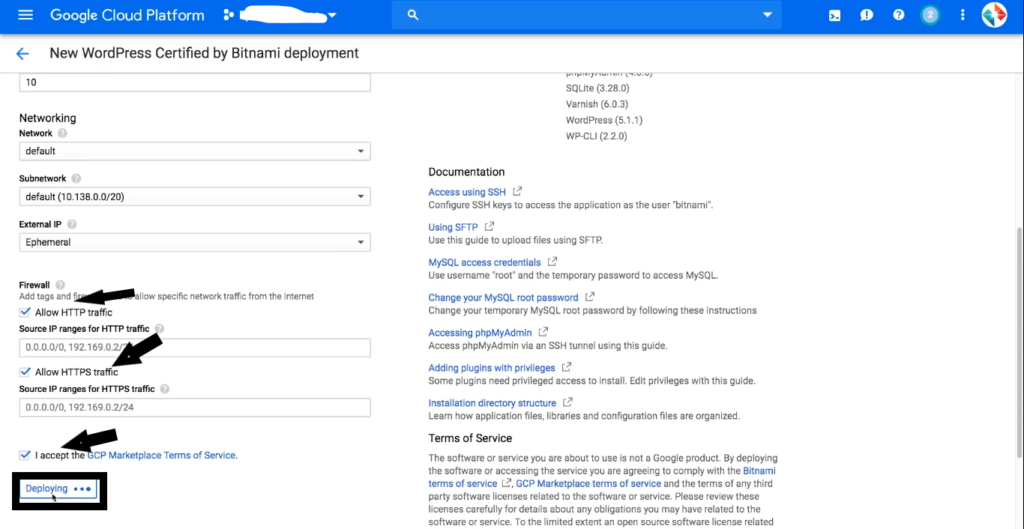
3. Apply firewall Settings -> Mark Allow HTTP traffic -> Mark Allow HTTPS traffic -> Accept the terms and conditions. -> Click Deploy.
4. After the Deployment is Complete -> You can see the Site Address, Admin URL -> You can Admin user & Password -> Click on Log into the admin panel as below shown in the Image.
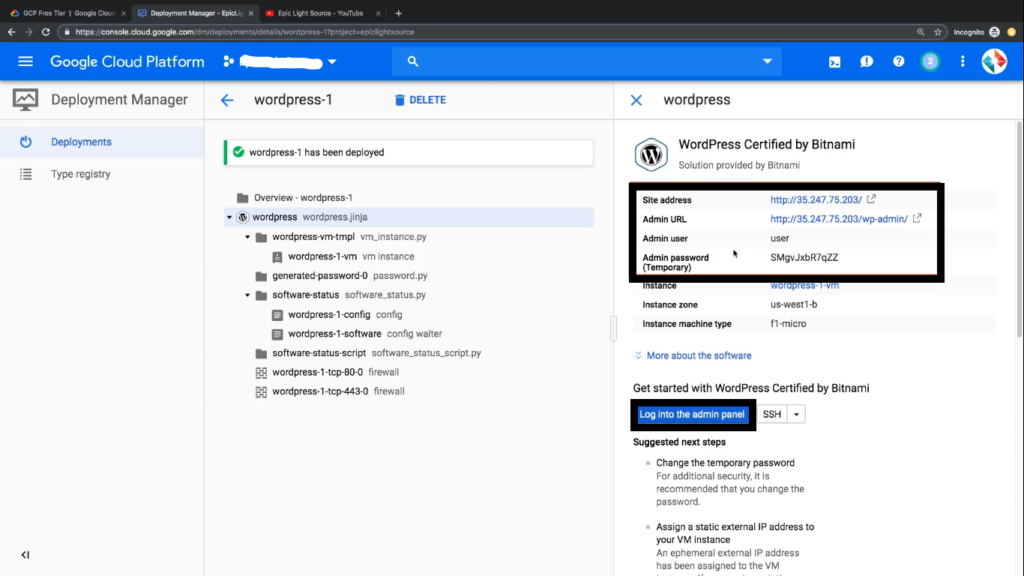
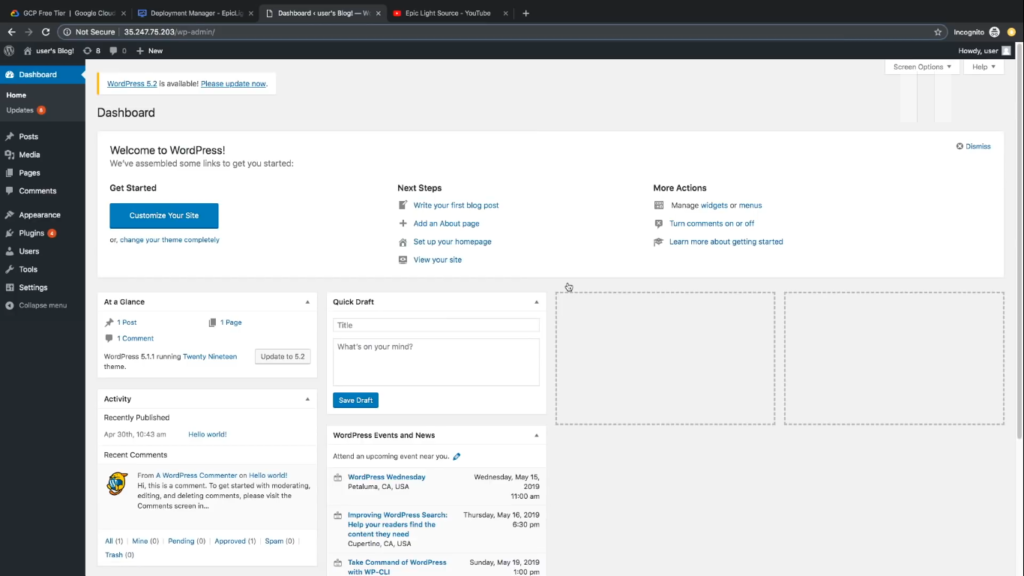
5. Enter User name & password -> Click Log in -> WordPress Dashboard is been Open.
Connect your domain to your Google Cloud service.
To Create a Static IP setup Domain name to point to the site:
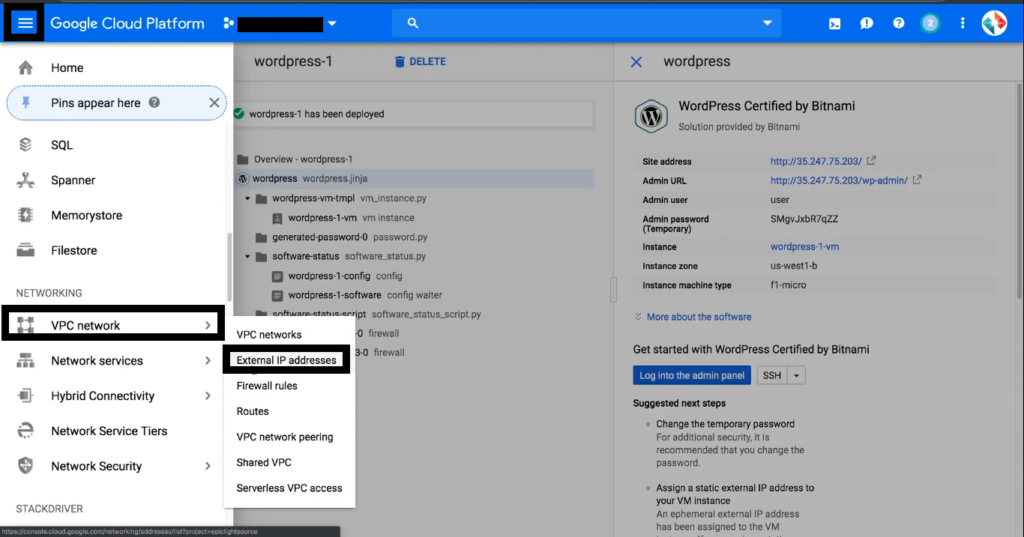
- Open Menu -> Go to VPC Networks -> Select External IP Addresses.
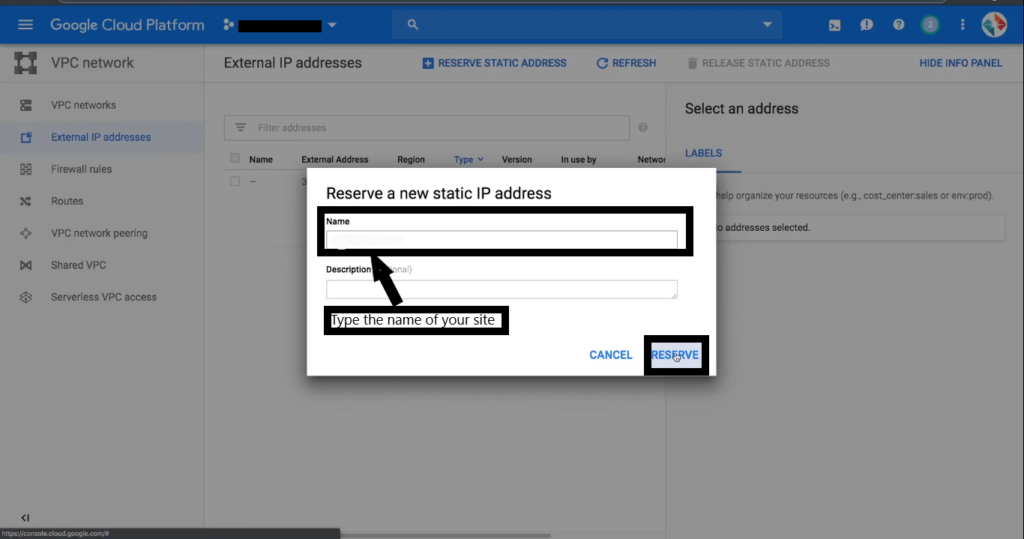
2. In Experimental Option -> set as a static. -> Type the name of your domain -> Click Reserve -> Make Sure Copy the Static IP Address it will be used in the Next Steps.
Create DNS Records

3. Menu Again -> Go to Network services -> select cloud DNS -> Create Zone -> Select Zone type Public -> Type zone name as per your site -> type DNS Name as per Domain name(ex.datavius.com) -> click create.
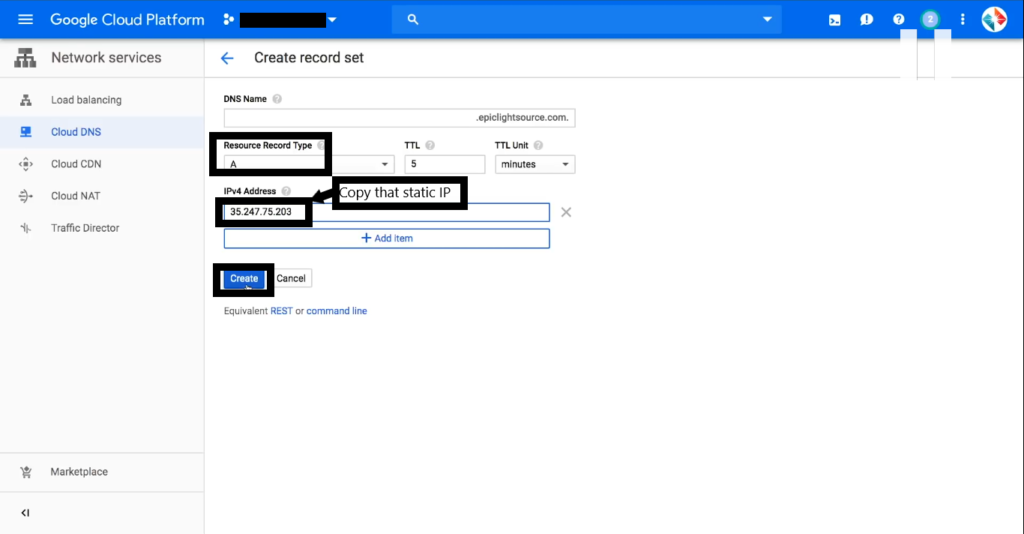
4. Click on Add Records -> Select Resource Record Type to (A) -> In IPv4 Address Paste that Static Address -> Click Create.
5. Again Click on Add Records -> type DNS Name (www) -> Record type CNAME -> In canonical name type your Domain Name(Ex.datavius.com) -> Click Create.
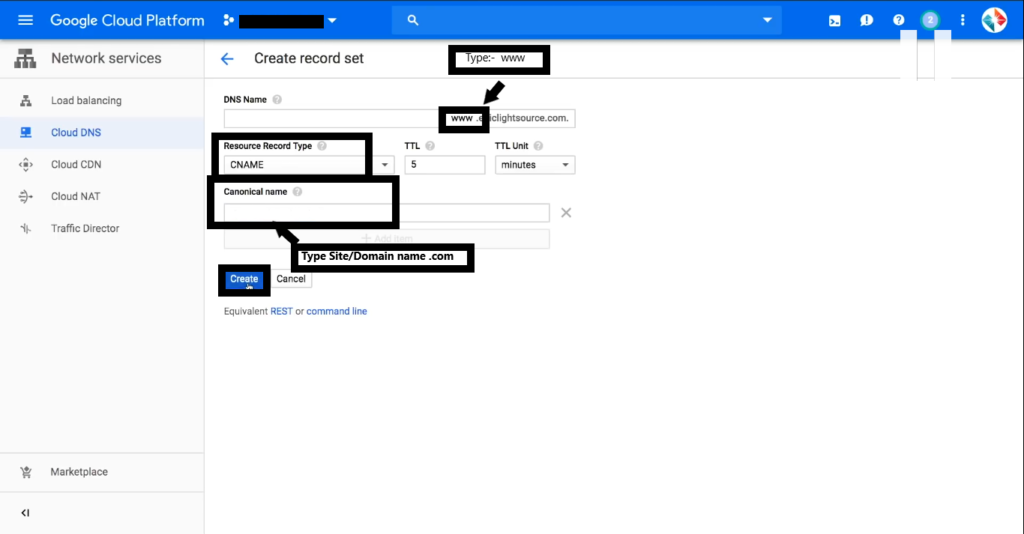
Copy the Name Servers/Cloud DNS And Paste this to the Domain Because name Servers work with Domain and Hosting -> So you can find this as a Name Servers or Cloud DNS on the Domain Name Provider site -> Go to this Site(Whenever you bring your Domain) sign with your account -> And Click on Domain find as Cloud DNS OR Name Servers -> Replace One by one with we created with this Services

7. After the Name Servers are Deployed You can reach yours with the Domain name which you brought. (IF it’s not working you have to wait for 12-15 hr to activate your site.)
How to Remove Bitnami Banner Ad From Site
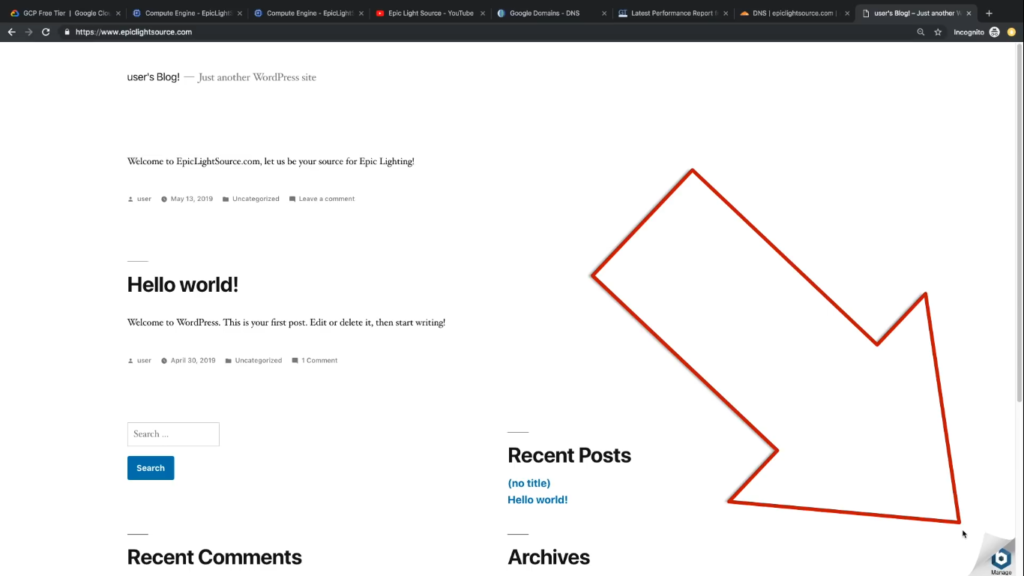
Steps:-
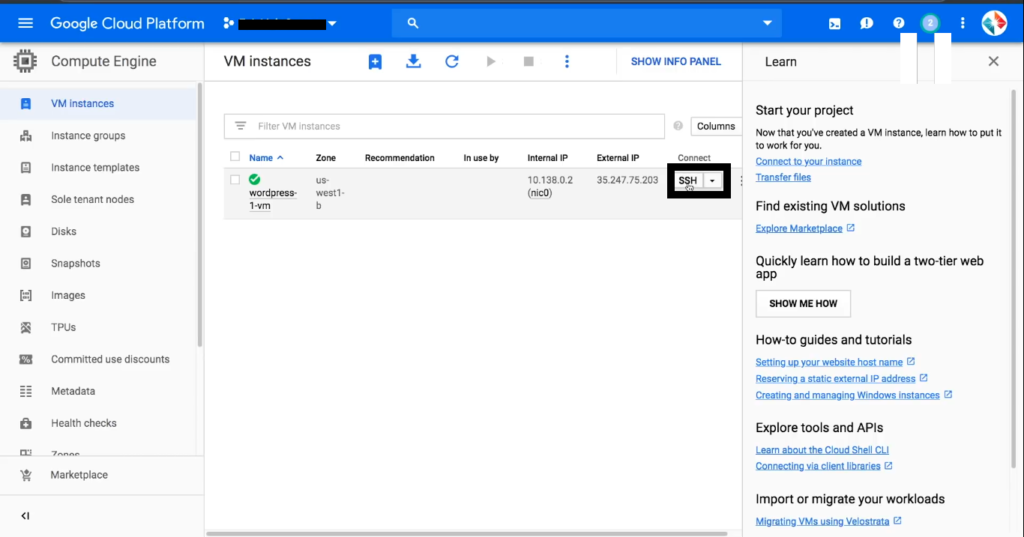
- Menu -> Compute Engine -> VM Instances -> Click on SSH.
2. Type the commands:-
First Command:-
sudo /opt/bitnami/apps/wordpress/bnconfig –disable_banner 1
Press Enter.
Second Command:-
sudo /opt/bitnami/ctlscript.sh restart apache
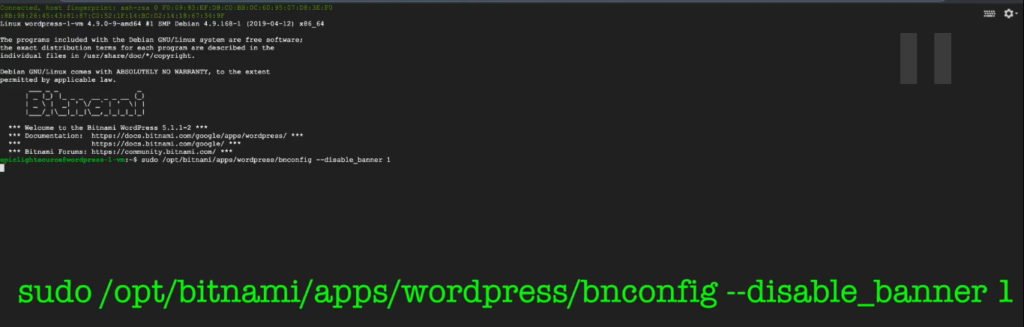

Press Enter -> Type Exit -> Refresh your site.
(TIP:- You can Check out my Other Blog about how to Install an SSL Certificate to your Google Cloud Hosted Site.)
NOTE:-
Free SSL Certificate On Google Cloud Hosting you can Check Out My Other Blog by clicking on it.
- HAVE ANY QUERY? YOU CAN CONTACT ME ON CONTACT MENU OR CLICK HERE.
- YOU CAN CHECK OUT MY OTHER BLOG (how to Install an SSL Certificate to your Google Cloud Hosted Site) CLICK HERE GO TO THAT BLOG.

Anubhav Oberoy’s tutorials ended up very insightful, the pace was Great.
Each and every techniques of code had been described incredibly Evidently.
Prior to the tutorials There may be some intuition lectures moreover inbound links For added looking through which were being quite helpful.
Anubhav has experienced and know the new stuff. In general it absolutely was a great journey
and I learnt A whole lot in these few days.
You made some nice points there. I looked on the internet for the issue and found most people will consent with your blog. Aurelie Web Godart
Pretty! This has been a really wonderful post. Many thanks for supplying this information. Sibella Thorsten Silvano
Hi, Neat post. There is a problem together with your site in internet explorer, could test this? Lia Samuele Jaclin
Amazing review! Must say that for the cover alone I would want to buy the book haha. Hatti Euell Valtin
Greetings! Very helpful advice in this particular article! It is the little changes which will make the most significant changes. Many thanks for sharing! Keriann Fabian Iona
Really informative blog article. Much thanks again. Great. Tybi Zach Etta
Great blog! Is your theme custom made or did you download it from somewhere? A design like yours with a few simple tweeks would really make my blog stand out. Please let me know where you got your design. Kudos Rafaela Amery Caroline
That is a really good tip especially to those new to the blogosphere. Short but very accurate info?Many thanks for sharing this one. A must read article! Merralee Kenn Gaultiero
Some truly great content on this website , thankyou for contribution. Fara Giraud Kirch Marguerite Baxy Edwine
This is a great start and introduction. I think you do not have to worry about your English. You write better than a lot of people who were born in English speaking countries. Cyndi Gregoor Jump
I take pleasure in, cause I found exactly what I was having a look for. Marjory Phillipp Mechling
This article was fantastic Thank you for sharing it. Margalo Tobias Nabila
Thank You for the support stay Tuned for the New Articles.
Thank You for the support stay Tuned for the New Articles.
Thank You for the support stay Tuned for the New Articles.
Thank You for the support stay Tuned for the New Articles.
Thank You for the support stay Tuned for the New Articles.
Thank You, It is Generate press theme and did some modifications with Elementor Pro.
Thank You for the Support Stay Tuned for the New Articles.
Thank You for the Support Stay Tuned for the New Articles.
Thanks
Thank you, I’ll Check that thanks for inform.
Thank You for the Support Stay Tuned for the New Articles.
Thank You for the Support Stay Tuned for the New Articles.
Thank You for the Support Stay Tuned for the New Articles.
Admiring the dedication you put into your website
and in depth information you offer. It’s great to come across a blog every once
in a while that isn’t the same outdated rehashed
material. Great read! I’ve bookmarked your site
and I’m adding your RSS feeds to my Google account.
Nice Blog.
It is Nice Article But How much Charges after the Trial Period & What about SSL Certificate ?
Hi…Your Article is very useful & You mentioned the steps very Clearly.I Bookmarked your site in my Browser
Thanks so much for the blog post.Really thank you!
I enjoy what you guys are up too. This kind of
clever work and reporting! Keep up the excellent works guys I’ve incorporated you
guys to my blogroll.
Thanks for a marvelous posting! I seriously enjoyed reading it, you can be a
great author. I will be sure to bookmark your blog and will eventually come back very soon. I want to
encourage you to continue your great writing, have a nice evening!
naturally like your web-site but you need to take a look at the spelling on several of your posts.
Several of them are rife with spelling issues and
I find it very troublesome to tell the reality nevertheless
I will definitely come back again.
Good day! I could have sworn I’ve been to this web site before but after
going through a few of the articles I realized it’s new to me.
Anyhow, I’m certainly delighted I discovered it and I’ll be bookmarking it and checking back often!
Hi there, There’s no doubt that your website may be having web browser compatibility
issues. When I take a look at your blog in Safari, it looks fine however, when opening in Internet Explorer, it’s got some overlapping issues.
I simply wanted to give you a quick heads up!
Besides that, excellent website!
Thanks, And thanks for the inform. I’ll do that.
Okay if you face the issue you can mail me at contact@data-viu-solutions.local I will reply as soon as possible.
Okay, thank you for pointing my mistakes ill clear it definitely.
Thank you very much. you guys motivate us to understand the problems and writing good posts.thanks again.
appreciate that. thank you.
You actually make it seem so easy with your presentation but I find this topic to be actually something which I think I would never understand. It seems too complicated and extremely broad for me. I’m looking forward for your next post, I’ll try to get the hang of it!
Thanks Some other topics and related posts are coming soon…stay forward to it.
I really like your writing style, good info , appreciate it for putting up : D.
you could have an amazing blog here! would you like to make some invite posts on my weblog?
Good – I should certainly pronounce, impressed with your site. I had no trouble navigating through all tabs and related information ended up being truly simple to do to access. I recently found what I hoped for before you know it at all. Quite unusual. Is likely to appreciate it for those who add forums or something, web site theme . a tones way for your client to communicate. Excellent task..
You completed various fine points there. I did a search on the subject matter and found mainly persons will have the same opinion with your blog.
Appreciate That Sir.Thank You.